Take Screenshots Faster in Windows (Step-by-Step Guide)
Taking screenshots in Windows doesn’t require any extra software. Windows already provides multiple easy and fast options.
Below are the best methods explained step by step.
Option 1: Screenshot Selected Area (Best & Most Used)
Shortcut: Win + Shift + S
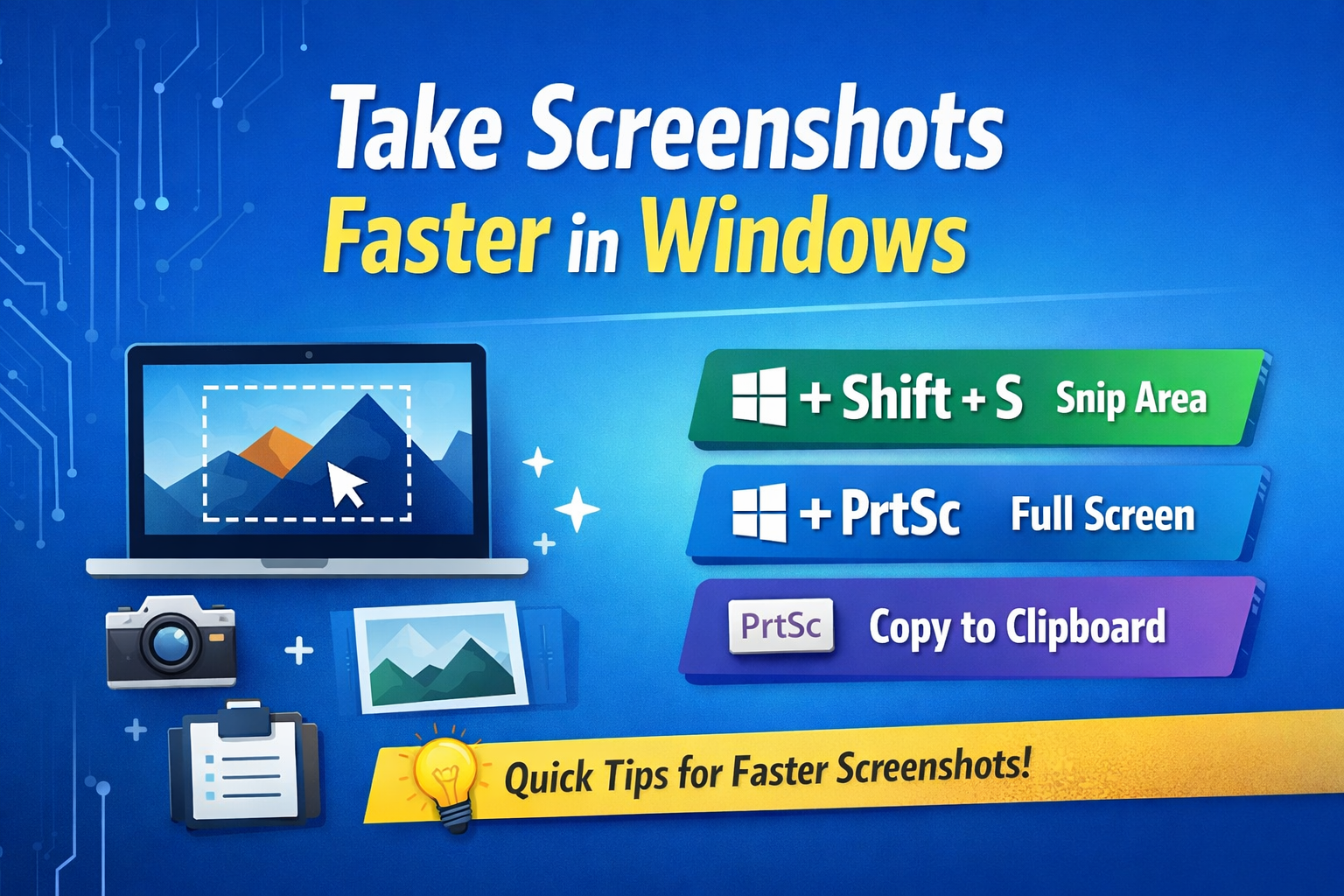
- Press Windows + Shift + S together
- The screen will become slightly dark
- Select the area you want to capture
- The screenshot is copied automatically
- Paste it using Ctrl + V in Paint, Word, or WhatsApp Web
Best for: Capturing part of the screen
Option 2: Full Screen Screenshot (Auto Save)
Shortcut: Win + PrtSc
- Press Windows + Print Screen
- The screen flashes once
- Screenshot is saved automatically
Location: This PC → Pictures → Screenshots
Option 3: Copy Full Screen to Clipboard
Shortcut: PrtSc
- Press the Print Screen key
- Full screen is copied to clipboard
- Open Paint, Word, or Email
- Press Ctrl + V to paste
Option 4: Screenshot Active Window Only
Shortcut: Alt + PrtSc
- Click on the window you want to capture
- Press Alt + Print Screen
- The active window screenshot is copied
- Paste using Ctrl + V
Option 5: Use Snipping Tool (Built-in App)
- Press the Windows key
- Type Snipping Tool
- Open the app
- Click New
- Select area and save the screenshot
Pro Tip
Use Win + Shift + S for 90% of your screenshots. It is fast, flexible, and works everywhere.
Summary
| Option | Shortcut | Best Use |
|---|---|---|
| Option 1 | Win + Shift + S | Selected area |
| Option 2 | Win + PrtSc | Full screen (auto save) |
| Option 3 | PrtSc | Copy full screen |
| Option 4 | Alt + PrtSc | Active window |
| Option 5 | Snipping Tool | Button-based capture |
Screenshots save time and improve communication. Once you start using shortcuts, you’ll never go back to manual methods.
← Back to Tech Tips